
KonnectVid: Personal Video Messaging
That Gets Results
Send 1:1 or mass video messages by text or email
complete with auto-play GIF previews and real-time engagement tracking.
Make Your Videos Stand Out in the Inbox

KonnectVid auto-generates animated GIF previews for your videos, so every message catches attention and drives clicks — no matter if it’s sent by email or text.
Works with any contact
Preview GIF boosts open and play rates
Instant mobile-friendly delivery
Send to One Contact — or Thousands

Whether it’s a quick follow-up or a full nurture campaign, KonnectVid makes it easy. Just tag your contacts and send in bulk or 1:1.
Tag-based targeting
Campaign-ready workflows
Perfect for intros, updates, and reactivations
Know Exactly Who Watched What — and When
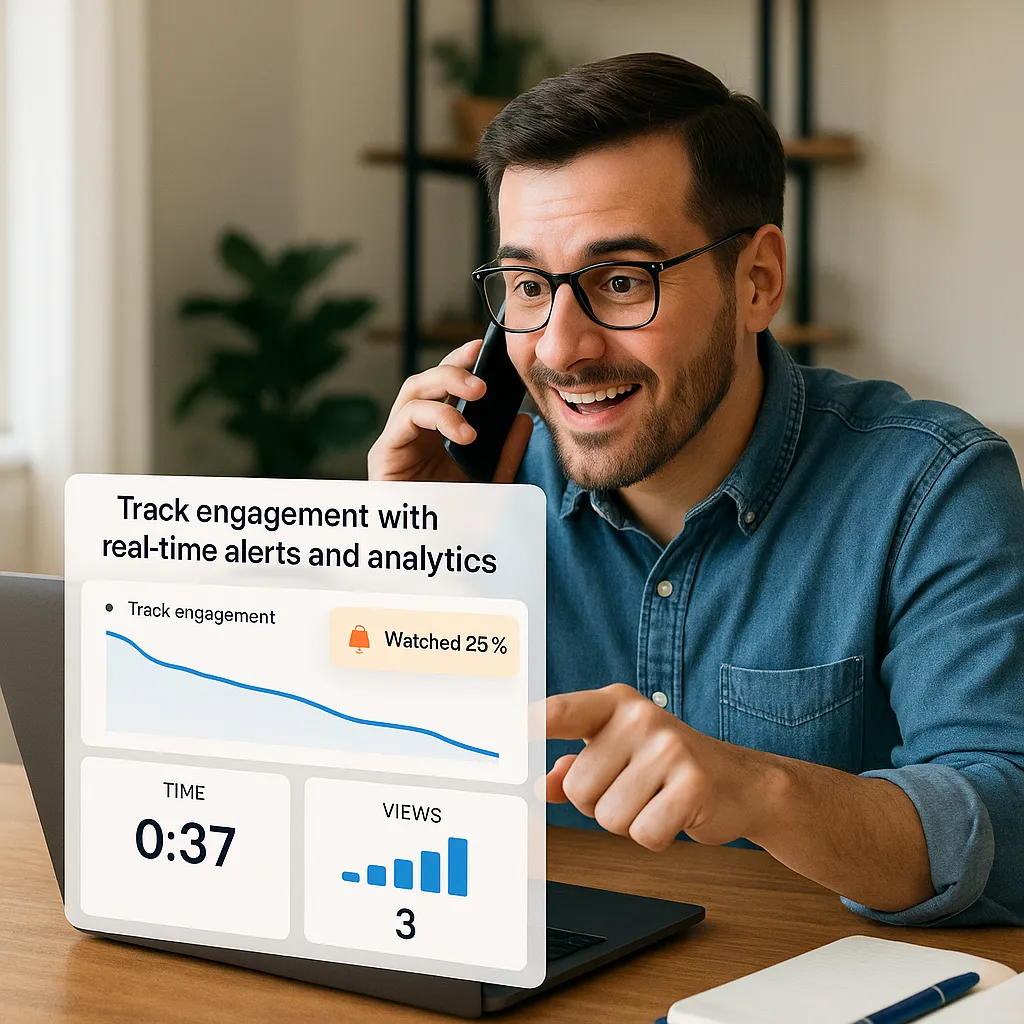
Track engagement with real-time alerts and analytics.
You’ll know when your video was watched,
how long they stayed, and when to follow up.
Real-time view tracking
CRM-integrated insights
Optimized for follow-ups
Frequently Asked Questions
How to Use Konnectvid to Send Videos to Your Clients.
Konnectvid is a built-in video tool inside Konnectd that lets you send short, personal videos to your leads or clients. Whether it’s a friendly hello, a follow-up, or a milestone update, Konnectvid makes it easy to stay human and connect at scale.
How to Use Konnectvid
Step 1: Launch Konnectvid
Click the Konnectvid on the left-hand menu
Step 2: Start a New Recording
Click Start Recording on the right side of the dashboard
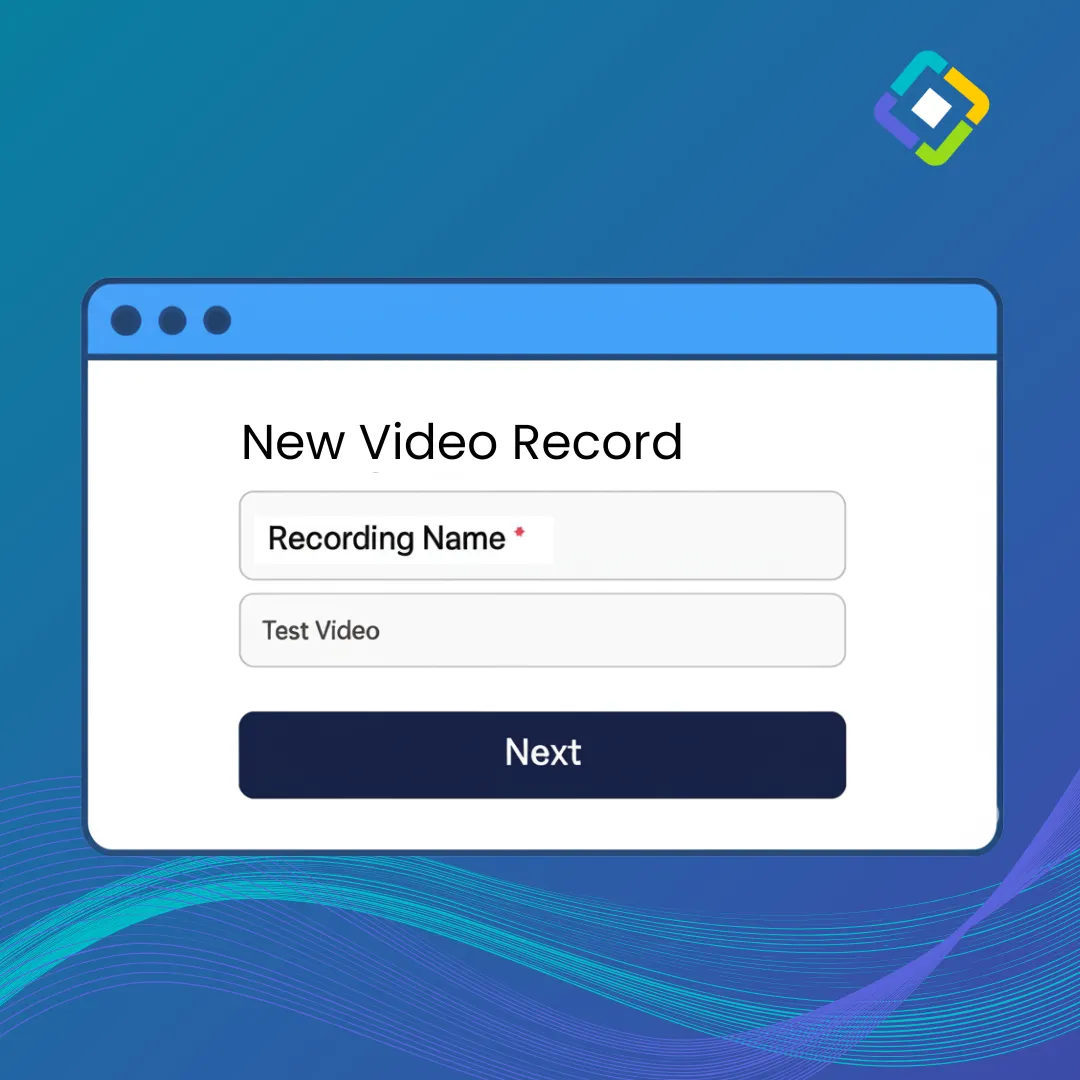
A pop-up will appear—add a title for your video
Wait a few seconds for the title to save
Step 3: Start recording!
The video recorder will appear, with options to:
Use webcam
Share your screen
Or use both
Step 4: Save & Share
Once you're done recording, click “Save Video to Library”
Then, choose how to share it:
Send via text or email
Copy the video link and paste directly to a workflow
Step 5: Share Your Video
Once your video is saved, it's time to send it. Here's what each part of the sharing process looks like:
a. Share Video Modal (Pop-up)
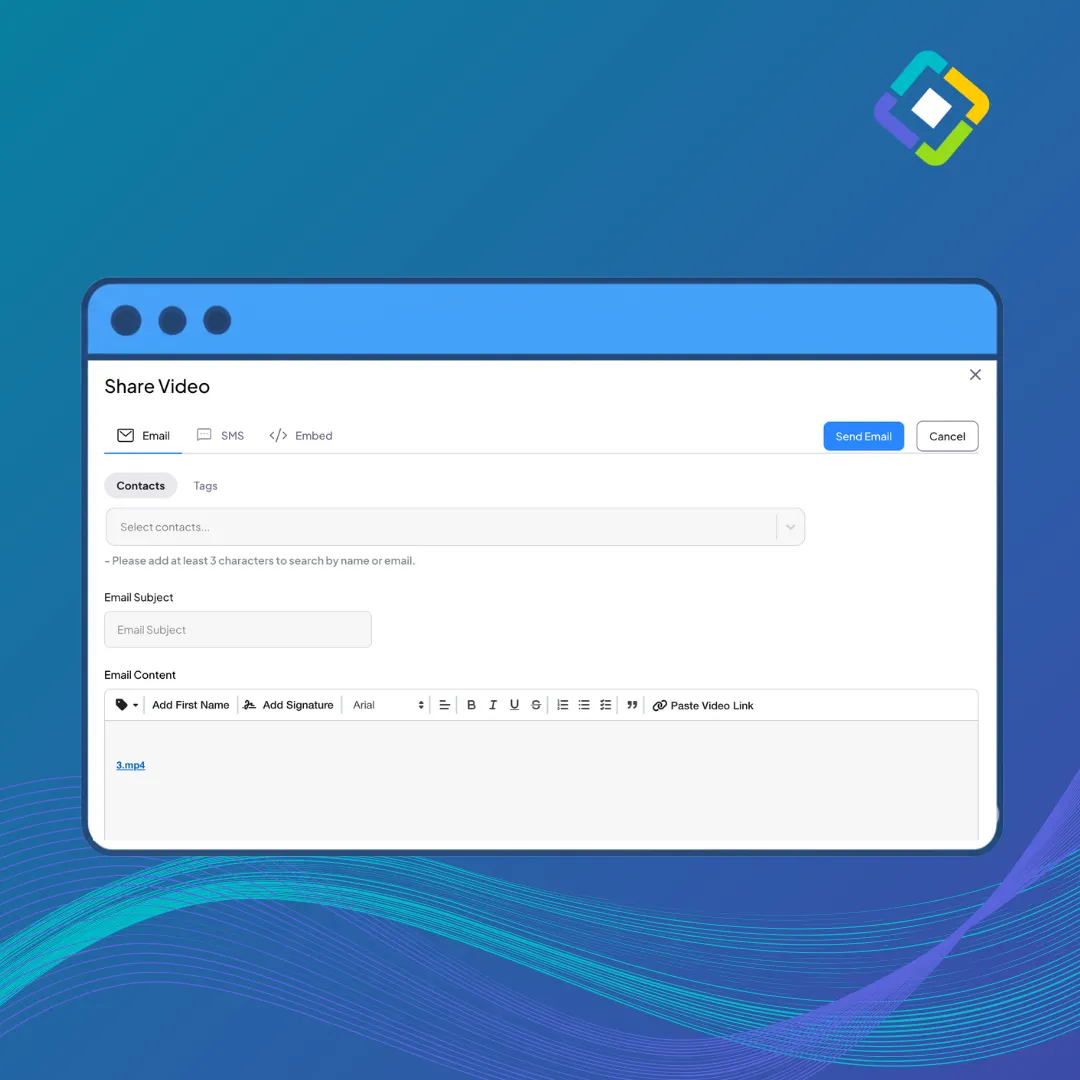
When you click “Share” on your saved video, the pop-up below appears.
It’s where you’ll write your message, choose contacts, and preview how the video will look when delivered.
b. Personalizing with Custom Fields
Make your message feel personal by using dynamic fields like the contact’s first name—or any other custom data stored in your system.
Just click the dropdown to insert any custom values directly into your message.
c. Selecting Recipients by Tag or Name
You can choose exactly who should receive your video—either by entering names manually or selecting from tags (like “past client” or “pre-approved”).
This gives you control to send the right message to the right person or group
d. GIF Preview in Email and SMS
Every video you send includes a GIF preview that appears right in the message to make it more engaging for your contacts to click and view your video.
Step 6: Track Engagement
After sending, you can see who watched your video and when they viewed it.
Note: Konnectvid works on desktop only.
The video player won’t record when I’m using incognito mode.
Solution: Incognito mode blocks third-party cookies by default, which can prevent the video player from working properly.
To fix this:
1. Go to your browser settings.
2. Enable third-party cookies
3. Refresh your browser and try again.
My face recording disappears when I switch tabs while screen recording.
Solution: KonnectVid can record either your face or your screen, but not both simultaneously across multiple tabs.
1. If you switch tabs, the face recording will stop.
2. To keep your face visible, stay on the selected tab while recording.
3. If you need to switch tabs, choose full-screen recording instead of a single tab.
How do I send a video to an entire Smart List?
Solution: The KonnectVid app doesn’t display Smart Lists, but you can still send your video to a Smart List by following these steps:
1. Record your video and copy the video link.
2. Go to Contacts in your CRM.
3. Select your Smart List.
4. Use Bulk Actions to send an email or SMS.
5. Paste the video link and send it to your selected contacts.
